
This template creates task boards with up to five columns.
Importing the template
Importing the template
The import file is included in the archive file .zip. Unpack the zip file first.
On the page Special:Import follow these steps:
- Select file and choose .xml.
- Enter an Interwiki prefix. Since this field is required, simply add hw (for hallowelt).
- Keep the selection Import to default locations.
- Click Upload file... .
Create a taskboard
To create a taskboard
- Create an empty wiki page.
- Select Insert in the editor toolbar, then choose Template.
- Insert the Taskboard template .center|mini|400x400px
- Click Add.
- Click Insert in the dialog box.Important!
Ignore the options shown in the dialog box. The task board will be defined via a form in the next step.
- Save the page with the empty template. The page will appear blank.
- Click the edit icon (pencil) on the saved page. The form for creating the task board opens.
- Enter the topics for your task board columns and activate the corresponding checkbox. A column is only displayed if it is activated.
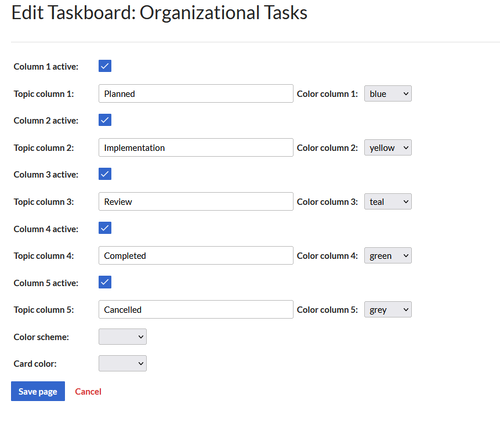
Define task board

Additional optional settings:
- Background color for each column header
- Color scheme (optionally set to "soft")
- Card color (optionally set to "white")
- Save the task board. You can now start adding content.
Create Task Cards
To create a task card:
- Click the plus button in the desired column.
- Enter the task.
Keep the text short, as it will be used to generate the name of a subpage of the task board. The following special characters are not allowed:# < > [ ] | { }. - Optionally, enter a short description of the task in the Content field. This will be displayed on the task board. You can add more detailed information later on the task page itself.
- Save the task. It will be created as a subpage of the task board. Click the task board name to return to the board. Your task will now appear in the corresponding column.
-
Task board
-
 Style variation

Priorität und Sortierung von Aufgaben
Für jede Aufgabe können Sie eine Priorität angeben:
- hoch: Die Karte erhält eine rote Umrandung. Ein zusätzlicher "Pfeil nach oben" markiert diese Stufe zusätzlich.
- normal: Die Karte hat keine Sonderformatierung.
- niedrig:Die Karte erhält einen "Pfeil nach unten".
Die Sortierung der Karten erfolgt absteigend nach Priorität (hoch, normal, niedrig) und anschließend nach Änderungsdatum (neuestes Datum zuerst).
Verschiebung von Aufgaben
Um eine Aufgabe in eine andere Spalte zu verschieben, öffnen Sie die Aufgabenseite und wählen Sie das entsprechende Thema aus.
Pages included in the import
The xml import creates the following files in your wiki:
- Vorlage:Taskboard
- Vorlage:Taskboard/Infobox
- Vorlage:Taskboard/TaskCard
- Vorlage:Taskboard/addButton
- Vorlage:Taskboard/ask
- Vorlage:Taskboard/colors
- Vorlage:Taskboard/styles.css
- Formular:Taskboard
- Formular:Taskboard/Infobox
- Attribut:Taskboard
- Attribut:Taskboard/Content
- Attribut:Taskboard/Priority
- Attribut:Taskboard/Status
- Attribut:Taskboard/Topic





